Califia Farms – MS Authenticator App Guide
Step 1 – To start, download the Microsoft
Authenticator app from your app store. Please take note of the screenshot
below to know which app to install. It seems that in both the Apple and
Google app stores, a paid app comes up first when you search. Please use
the genuine Microsoft app which is free. The app will ask if you want to
allow notifications, please click allow. At this point it may as for
permission to use your camera, please click allow as you will need to scan a QR
code in a later step. The app will also ask what type of account you wish
to add, select “Work or School” and then proceed to step 2.

Step 2 – Log into www.office.com (Sign out if you are already
logged in)
You will need to use your full Califia email address as the username, regular
network password and your current SMS/text MFA method to log in.
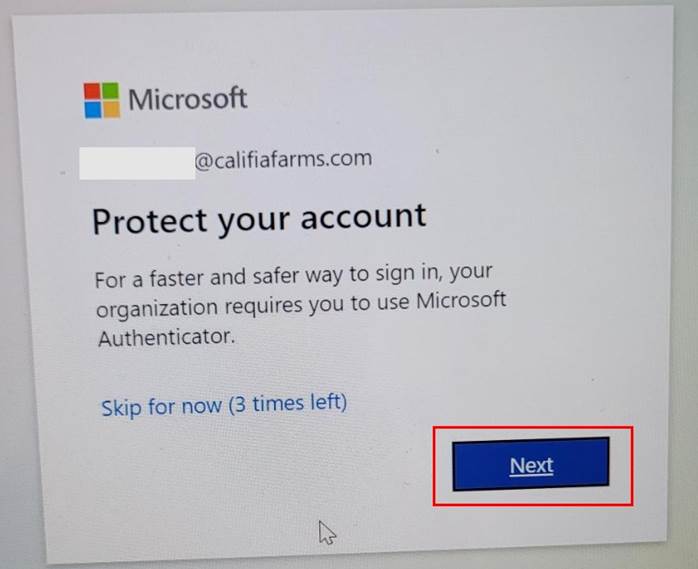
Step 3 – Click Next as you have already
downloaded the app
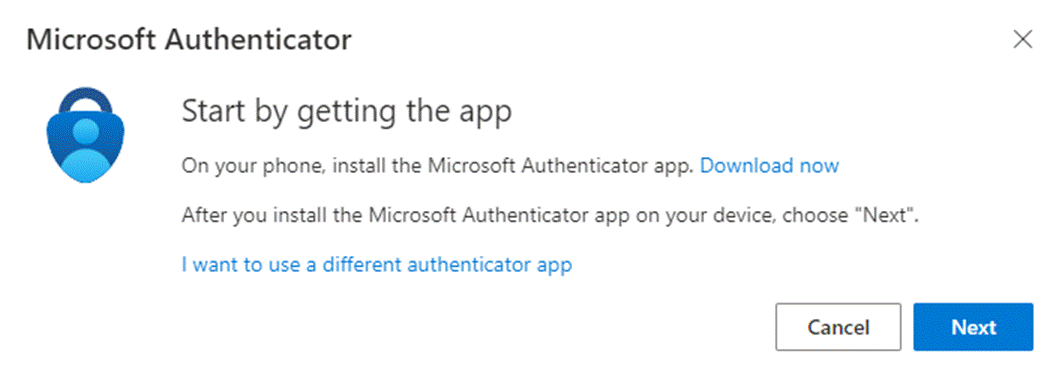
Step 4 – Click Next and you will be presented
with a QR code.
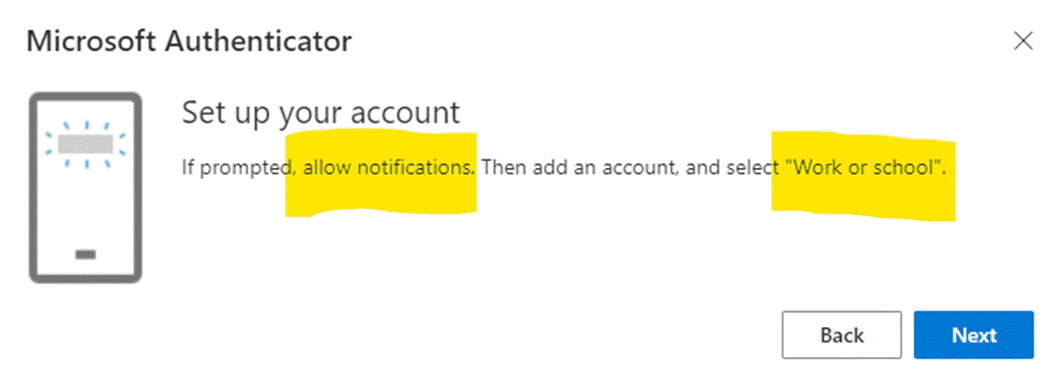
Step 5 – Scan the QR code with the app.
The specific instructions for your cell phone may vary depending on the brand
as app interfaces vary between Apple and Google. You may be automatically
prompted to scan a QR code or you may need to click the plus ( + ) symbol
in the upper right corner. After scanning, click Next.

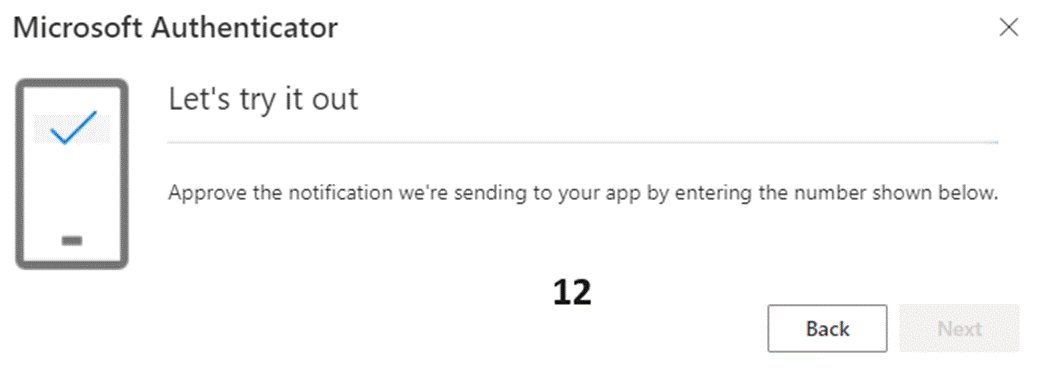
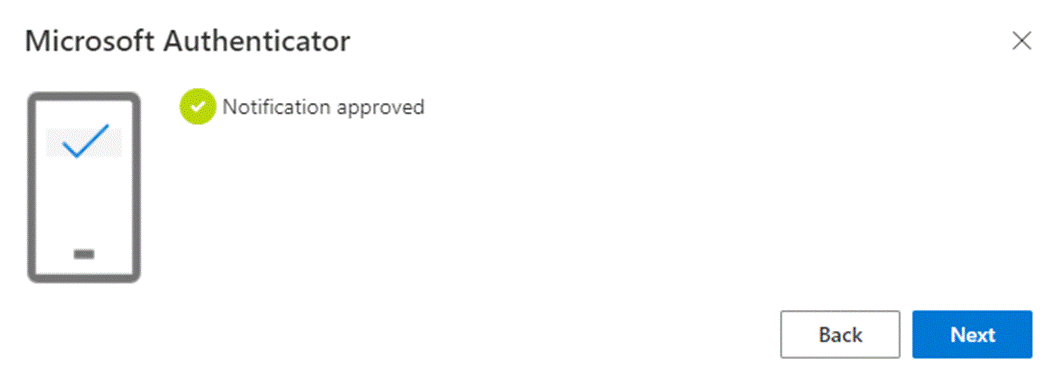
Step 6 – The website will present a two digit
code. Type this code into the app and you should see a “Notification
approved” message. Click Next.
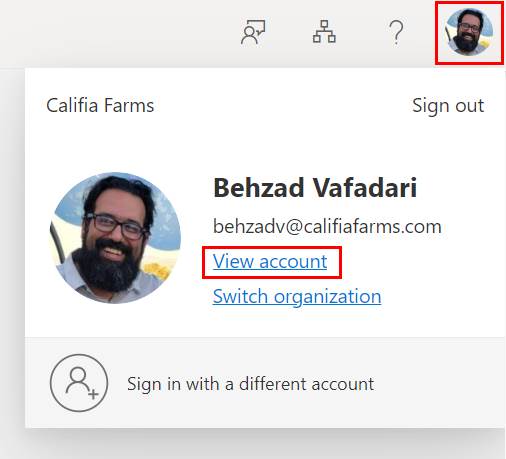
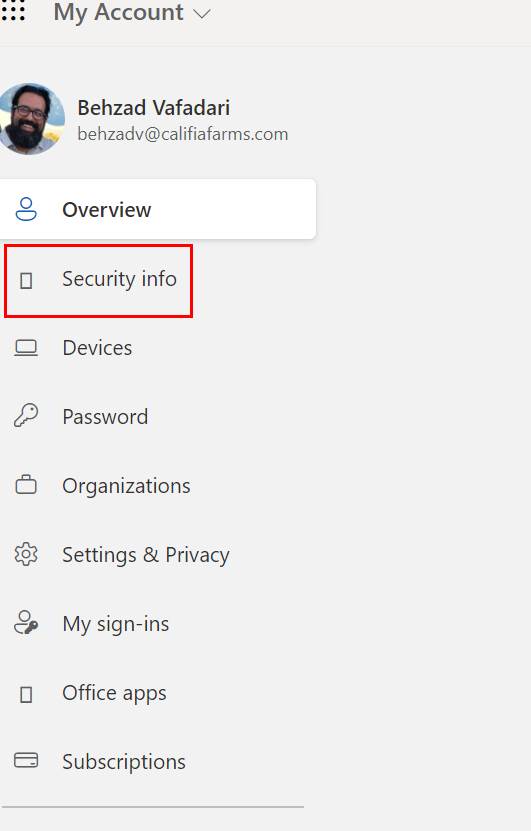
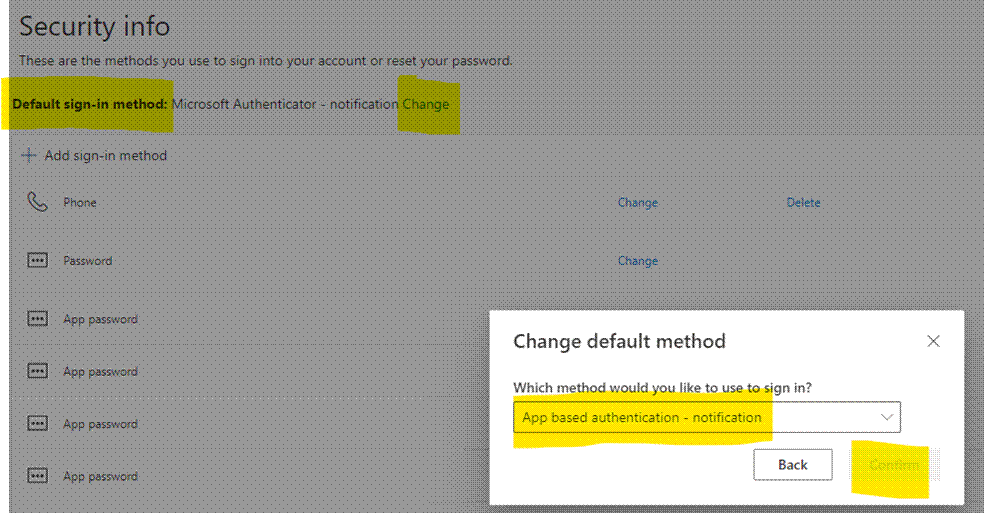
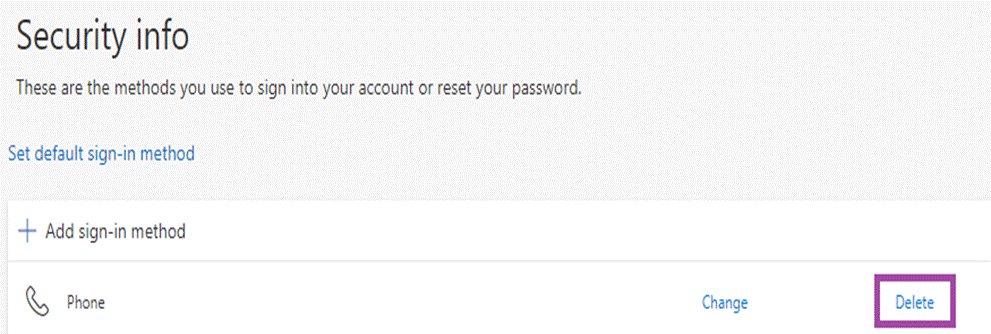
Step 8 – After you logged back in – click on your picture and then View account then Security info page. Click Change and select “App based authentication – notification” from the drop down and click Confirm.
Step 9 – Back on the Security Info page,
delete all of your other MFA methods. Only keep the Microsoft Authenticator and
Password.
Please contact the Califia IT team by submitting a ticket at: http://www.califiait.com if you need help.
Thanks
Califia Farms IT Department